Sales coaching for phone calls, not just video meetings
Yes. You can get real-time sales coaching on an ordinary phone call, not only on Zoom, Microsoft Teams or Google Meet, as long as the call's audio plays through your computer. CallPrompter listens to the sound your computer plays and to your microphone. It does not plug into a meeting platform, so a call in a softphone (a calling app on your computer), a browser dialer or your CRM's dialer is coached the same way a video call is. A call on a mobile handset held to your ear never reaches the computer, and CallPrompter cannot coach it.
CallPrompter is a desktop app for macOS and Windows that coaches B2B sellers in real time during live calls, ordinary phone calls included. CallPrompter is built in Männedorf, Switzerland, and sold online to individual sellers and sales teams worldwide.
The 7-day free trial covers your scripts and 30 minutes of AI practice. Live call coaching, on a phone call or a video call, starts on a paid plan.
Which phone calls get coached, and which do not
One condition decides every row below: the prospect’s voice has to play through the computer CallPrompter runs on, a Mac with macOS 14 or later or a PC with Windows 10 or later. The kind of call matters only because it decides where the audio goes.
| Call setup | Does the prospect’s voice play through your computer? | Does CallPrompter coach it? |
|---|---|---|
| Zoom, Microsoft Teams or Google Meet call | Yes, the meeting app plays it through your computer | Yes, CallPrompter coaches a video call |
| VoIP softphone (an app that places phone calls over the internet) on your computer | Yes, the softphone plays it through your computer | Yes, CallPrompter coaches it exactly as it coaches a video call |
| Browser dialer, your CRM’s built-in dialer, or a contact-center softphone running on your computer | Yes, the dialer plays it through your computer | Yes, CallPrompter coaches it with no connection to that dialer |
| Mobile call you answer on your computer (an iPhone relaying to a Mac, or an Android phone or iPhone paired with a Windows PC over Bluetooth through Phone Link) | Yes, once you answer it on the computer | Yes, CallPrompter coaches it for as long as the call stays on the computer |
| Mobile call on the handset, held to your ear | No, the prospect’s voice stays on the phone | No, CallPrompter cannot hear the prospect, so it has nothing to coach |
| Desk phone or landline on the PSTN (the ordinary telephone network) with no connection to your computer | No, the prospect’s voice stays on the desk phone | No, CallPrompter cannot hear the prospect on that line |
The same rows, one line each:
- A Zoom, Teams or Meet call plays through your computer, and CallPrompter coaches it.
- A VoIP softphone call plays through your computer, and CallPrompter coaches it the same way.
- A call in a browser dialer, a CRM dialer or a contact-center softphone on your computer plays through it, and CallPrompter coaches it without any connection to that dialer.
- A mobile call you answer on your Mac or PC plays through the computer, and CallPrompter coaches it while it stays there.
- A mobile call on the handset at your ear never reaches the computer, and CallPrompter cannot coach it.
- A desk phone or landline call with no link to the computer never reaches it, and CallPrompter cannot coach it.
Taking a mobile call on the computer uses features your phone and computer already have. Apple documents how an iPhone relays its cellular calls to a Mac, and Microsoft documents how Phone Link lets you pick up an Android or iOS call on a Windows PC over Bluetooth. CallPrompter runs beside whatever you dial with. It does not connect to your phone system or your carrier, so there is nothing to configure on that side.
Why the kind of call does not matter to CallPrompter
Many live coaching tools sit where the call happens: inside a meeting platform, a dialer or a contact-center platform. Whether one of them helps on a phone call depends on whether that call runs through its platform.
CallPrompter captures system audio, meaning the sound your computer is playing, together with your microphone. It never asks which app the call is in. That is why it works alongside Zoom, Teams, Meet and ordinary phone calls, and why it asks for microphone and system-audio permission on install. macOS asks twice.
Nothing joins the call as a bot, so nothing appears in the participant list. That matters more on the phone than in a meeting: there is no documented way for a third-party bot to join a carrier phone call, so tools that coach by sending a bot into the meeting generally cover only the meeting platforms they were built for. We set out that argument, with the recording rules in Switzerland and the US, in our post on adding in-call help to a meeting notetaker.
What CallPrompter does with the audio is the same on every call type. It transcribes the conversation and follows where it sits against your script using semantic matching, which follows the meaning of what is said rather than waiting for an exact keyword. Short cards appear in a floating overlay, a small window beside whatever you have open, such as your CRM or your dialer. Only you see them.
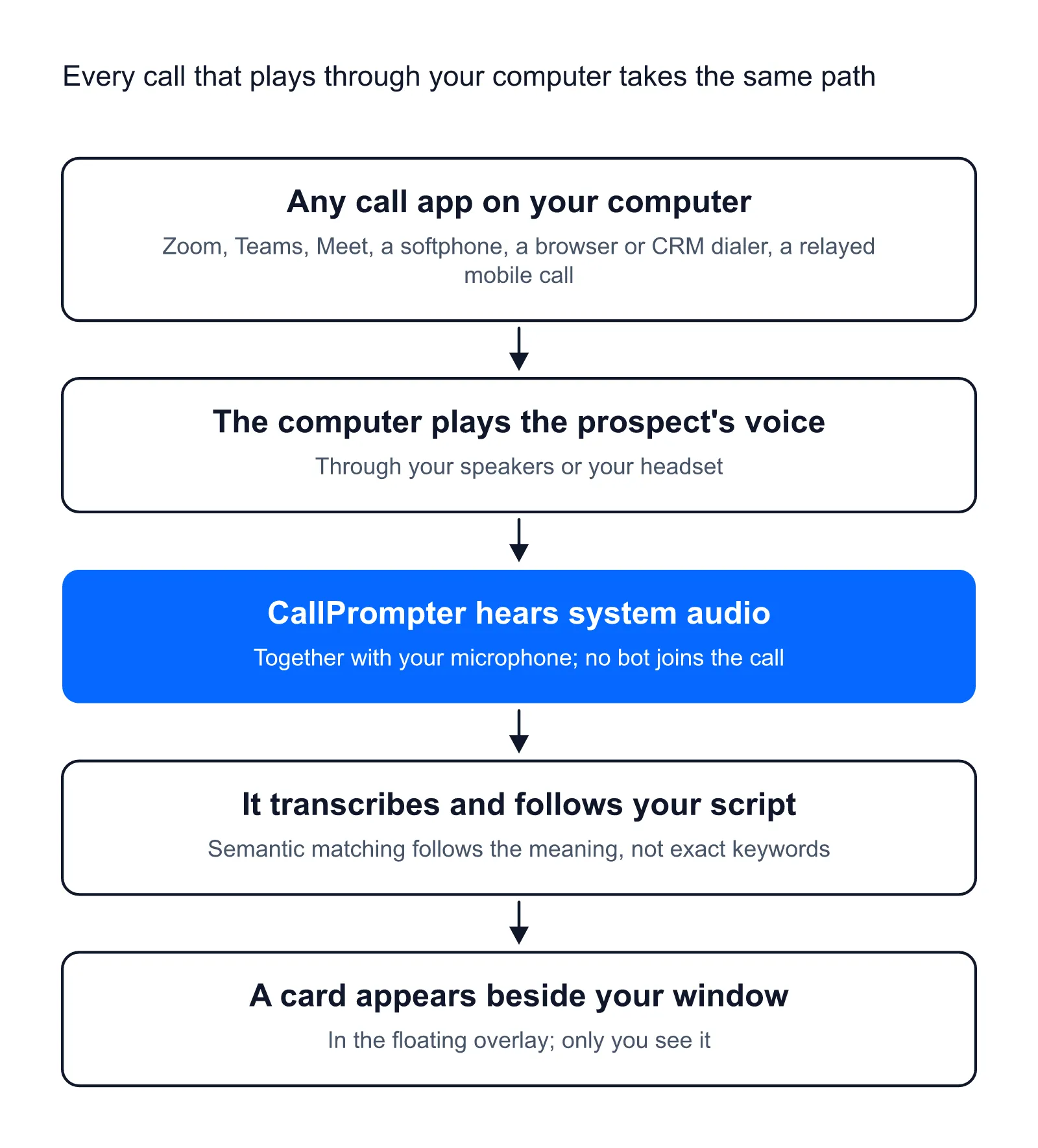
CallPrompter has published no usage figures, and it does not count how many of the calls it coaches are phone calls. What this page can show you is the mechanism and its limits.
What live coaching fixes on a phone call: the objection mid-call
Live coaching on a VoIP call, a dialer call or a mobile call taken on your computer solves one specific problem: handling the objection while the prospect is still on the line. When the objection comes, CallPrompter detects it and shows the response written into your script for it. You answer with the words you prepared, while the prospect is still listening.
A card on screen looks like this, taken from the CallPrompter homepage:
- Objection: “That’s more than we budgeted for this quarter.”
- Response: “How many deals did your team lose last quarter to preventable mistakes?”
Four kinds of card can appear during the call:
- Question: the discovery question to ask next, adapted to where the conversation is and who is on the other end
- Objection / Response: the objection detected, and the answer written into your script for it
- Guide: a coaching signal, such as stop explaining features, ask about budget, or slow down
- FAQ: a product fact the prospect is asking about
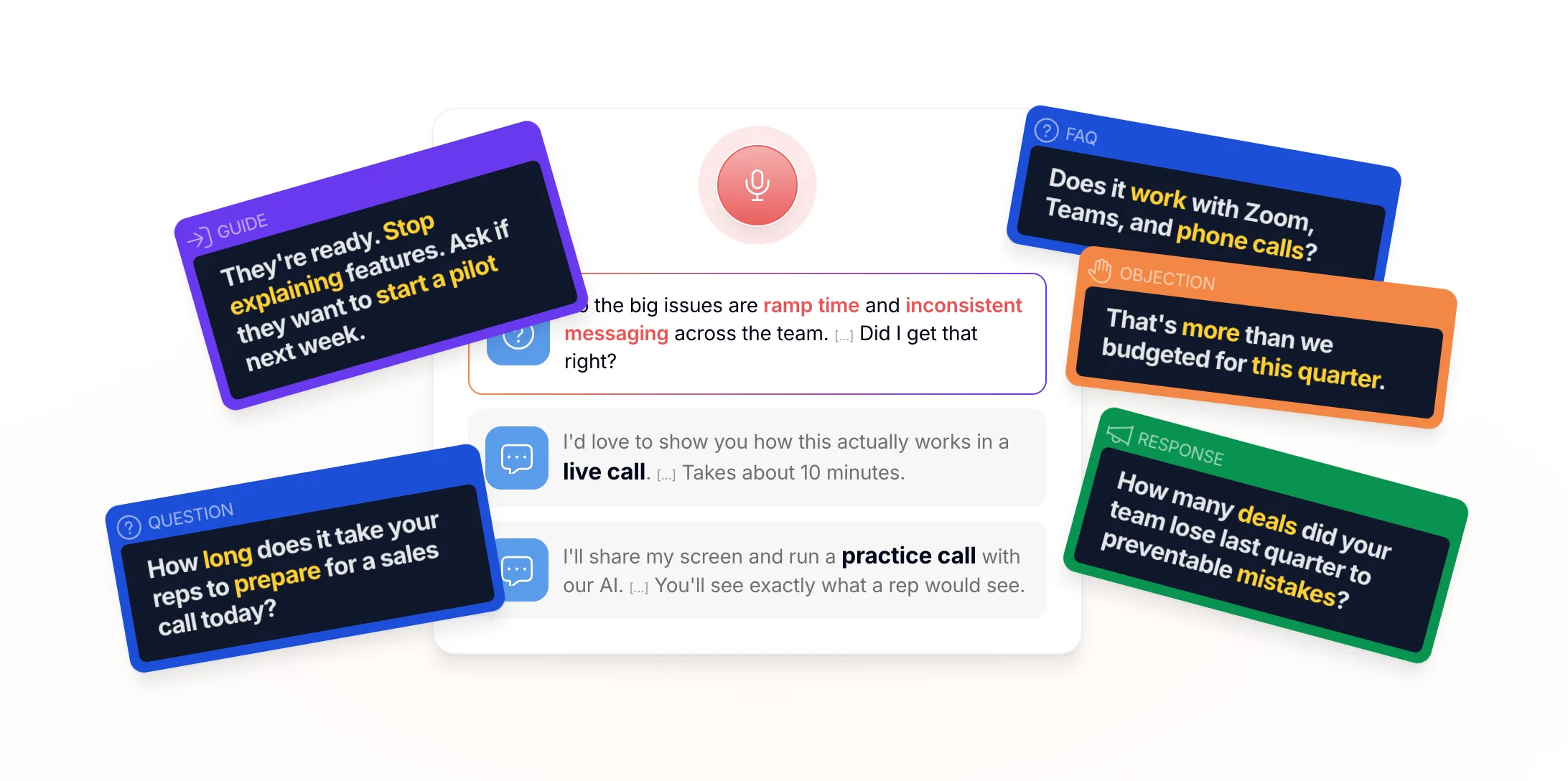
The design rule, in the founder’s words: judge live help on how little it shows you. Short prompts, few of them, with long gaps. On a phone call there is no screen share and no meeting window to make room for, so the only question is whether the card is short enough to read while you keep talking.
Phone work is where this lands hardest, because the same objections come back on every call:
- Insurance and financial advisory. Everyone hears “I already have cover” and “send me a comparison”, and the compliance wording has to come out right every time.
- Recruiting and staffing. The same candidate and client pitch runs dozens of times a day, and new consultants are on the phone in their first week.
- SDRs and BDRs. One script, branched for the personas they dial all day. Our list of the 12 most common cold call objections has talking points for each one you can load into a script.
- People selling in a language that is not their first. The prepared answer is on screen when the words do not come on their own.
How the approaches compare on a phone call
Sellers who ask which tools work on phone calls are choosing between six approaches. The one condition that applies to all of them: each covers only the calls it can hear.
| Approach | Which calls it covers | When the help arrives | Who acts on it |
|---|---|---|---|
| Desktop overlay that listens to system audio (CallPrompter) | CallPrompter covers any call whose audio plays through the seller’s computer: video, VoIP, browser or CRM dialer, or a mobile call taken on the computer | CallPrompter’s help arrives during the call, on the seller’s screen | The seller acts on CallPrompter’s cards |
| Coaching built into a dialer or calling platform | The dialer’s coaching covers calls placed through that dialer | The dialer’s help arrives during or after the call, depending on the platform | The seller and the manager working in that platform |
| Manager listen-in and whisper coaching (a manager hears the call through the phone system and speaks to the rep only) | Whisper coaching covers calls on a phone system that offers it | Whisper coaching arrives during the call, from a person | A manager, on one call at a time |
| Meeting bot, or a panel inside the meeting app | A meeting bot covers the meeting platforms it was built for; there is no documented way for it to join a carrier phone call | A meeting bot’s help arrives during or after the meeting | The seller, or the manager reading the summary |
| Post-call conversation intelligence (software that records the call and analyzes it afterward) | Conversation intelligence covers calls it can record through a phone system or meeting platform | Conversation intelligence arrives after the call, when the deal is already won or lost | A manager, in a review |
| AI roleplay practice | Roleplay covers no live call; it is practice against a simulated buyer | Roleplay helps before the call | The seller, in rehearsal |
The same comparison, one line each:
- A desktop overlay like CallPrompter coaches any call that plays through the computer, during the call, for the seller.
- Coaching built into a dialer covers calls placed through that dialer, during or after the call.
- Whisper coaching needs a manager on the line and a phone system that offers it, one call at a time.
- A meeting bot covers the meeting platforms it was built for, with no documented way to join a carrier phone call.
- Conversation intelligence records and analyzes the call afterward, for a manager’s review.
- AI roleplay prepares the seller before the call and does not run on a live one.
Who fixes what, by the need in front of you:
- You need the answer to an objection while the prospect is still talking, on whatever dialer you use: a desktop overlay on system audio. That is what CallPrompter is built for.
- Your whole team already calls through one platform and a manager wants to listen in: that platform’s own coaching or whisper feature.
- A manager wants recordings and scores after the call: post-call conversation intelligence. Our write-up on conversation intelligence or live coaching sets out when each one is the right buy.
- A new rep needs to hear the objections before the first dial: practice first. CallPrompter’s AI practice mode runs the same overlay against a simulated buyer.
To check any other tool against your phone setup, ask its vendor two questions: does the coaching run on calls placed outside its own dialer, and does the help arrive during the call or after it?
Other tools show you what went wrong after the call. CallPrompter helps you get it right while it’s happening.
Where phone-call coaching stops
A handset call is not coached. If the prospect’s voice never plays through your computer, CallPrompter cannot hear the objection. This is the limit that matters most for phone work. It comes from how the product captures audio, so no plan or setting changes it.
It is desktop only. Live coaching runs in the desktop app for macOS 14 or later and Windows 10 or later. There is no mobile app, so a call on your phone away from your computer is not covered. The Chrome extension is a separate companion that pulls contacts out of LinkedIn, Salesforce, HubSpot and Pipedrive. It is not the coaching product.
The cards are only as good as your script. Out of the box CallPrompter transcribes and follows the call. What it shows you is what you wrote into your script, your objection library (your saved answers to objections) and your product knowledge.
The audio leaves Switzerland while the call runs. Stored data (transcripts, scripts, account data) sits on servers in Switzerland. Real-time transcription is processed by a provider based in the United States, so audio does leave Switzerland while the call is running. Full processing details are covered in the privacy policy.
Getting set up for phone calls
A video-call user and a phone seller set up the same way, with one extra check: that your calls actually play through the computer.
- Install the desktop app. Download it for macOS 14 or later, or install it from the Microsoft Store for Windows 10 or later. Sign in and grant microphone and system-audio permission. Each seller does this once, on their own machine.
- Check the call path. Place one test call in your softphone or dialer. Confirm that you hear the other side through your computer’s speakers or headset and that they hear you through its microphone. As on a video call, that is all CallPrompter needs. We know of no headset, Bluetooth or dialer setting that stops the prompts on a phone call. If your calls ring on a mobile handset, set up Apple’s call relay or Microsoft’s Phone Link first. For the relay, turn on Allow Calls on Other Devices on the iPhone (Settings, Apps, Phone, Calls on Other Devices) and select Calls from iPhone in FaceTime’s settings on the Mac, with both signed in to the same Apple Account on the same network. Phone Link pairs the phone with the PC over Bluetooth, so both need Bluetooth turned on.
- Build a script. In the web app at app.callprompter.app, add your product, build a first script from the template (chapters for opening, discovery, objections and close), and add a persona, a short profile of the buyer you call, so the cards match that buyer. CallPrompter can also generate a first script from a description of your product and the goals of the call. On a team, one person usually builds the content and the sellers use it.
- Practice out loud. Run a practice call in AI practice mode against a simulated buyer that interrupts and pushes back, with the same overlay you will have on the real call.
- Take it onto real calls, then fix the script. Rewrite lines after the first few calls, because that is when you find out what prospects actually say on the phone. On a team, the person who builds the script does the rewriting.
Most of day one goes on downloading the app and building a first script. The free trial covers steps 1 to 4, and step 5 runs on Starter or Pro, the two paid plans below.
What it costs to coach phone calls
Prices are in US dollars, excluding VAT, billed monthly. Cancel anytime, no annual commitment.
- Free trial, $0 for 7 days, no credit card. The full script editor, the objection library, personas and 30 minutes of AI practice. No live call coaching.
- Starter, $99 a month. 24 hours of live call coaching or AI practice per month, shared across both. Phone calls and video calls draw on the same 24 hours.
- Pro, $249 per seat per month. Unlimited live call coaching and AI practice, a manager dashboard, and team script sharing with a shared objection library.
- Enterprise, from 50 seats. Volume pricing, custom contracts, SSO (single sign-on with your company login) and dedicated onboarding.
Questions phone sellers ask
Does CallPrompter work on cell phone calls?
Yes, when you take the call on your computer. A mobile call answered on your Mac or PC plays through the computer, and CallPrompter coaches it like any other call. A call held to your ear on the handset never plays through the computer, so CallPrompter cannot coach it.
Do I need a specific dialer or phone system?
No. CallPrompter captures system audio and does not integrate with any one dialer, softphone or phone system. The dialer you use today keeps working, as long as the call plays through your computer.
Does it work with the dialer built into my CRM?
Yes, when that dialer runs on your computer, in the browser or as a desktop app. CallPrompter hears the call through system audio, so coaching needs no connection to your CRM.
Can I use it on a desk phone or landline?
Only if that call’s audio plays through your computer. A desk phone on the ordinary telephone network with no link to the computer gives CallPrompter no way to hear the prospect.
Does the prospect see or hear anything?
No card reaches the prospect. On a phone call no screen is shared, so the only place the cards appear is your own screen, and nothing joins the call as a bot.
Can I try it on a real phone call before I pay?
No. The free trial covers scripts and 30 minutes of AI practice, and live call coaching starts on Starter. Practice mode runs the same overlay you will have on the phone.
If you are not sure whether your phone setup plays through your computer, send a message and the founder will get back to you.