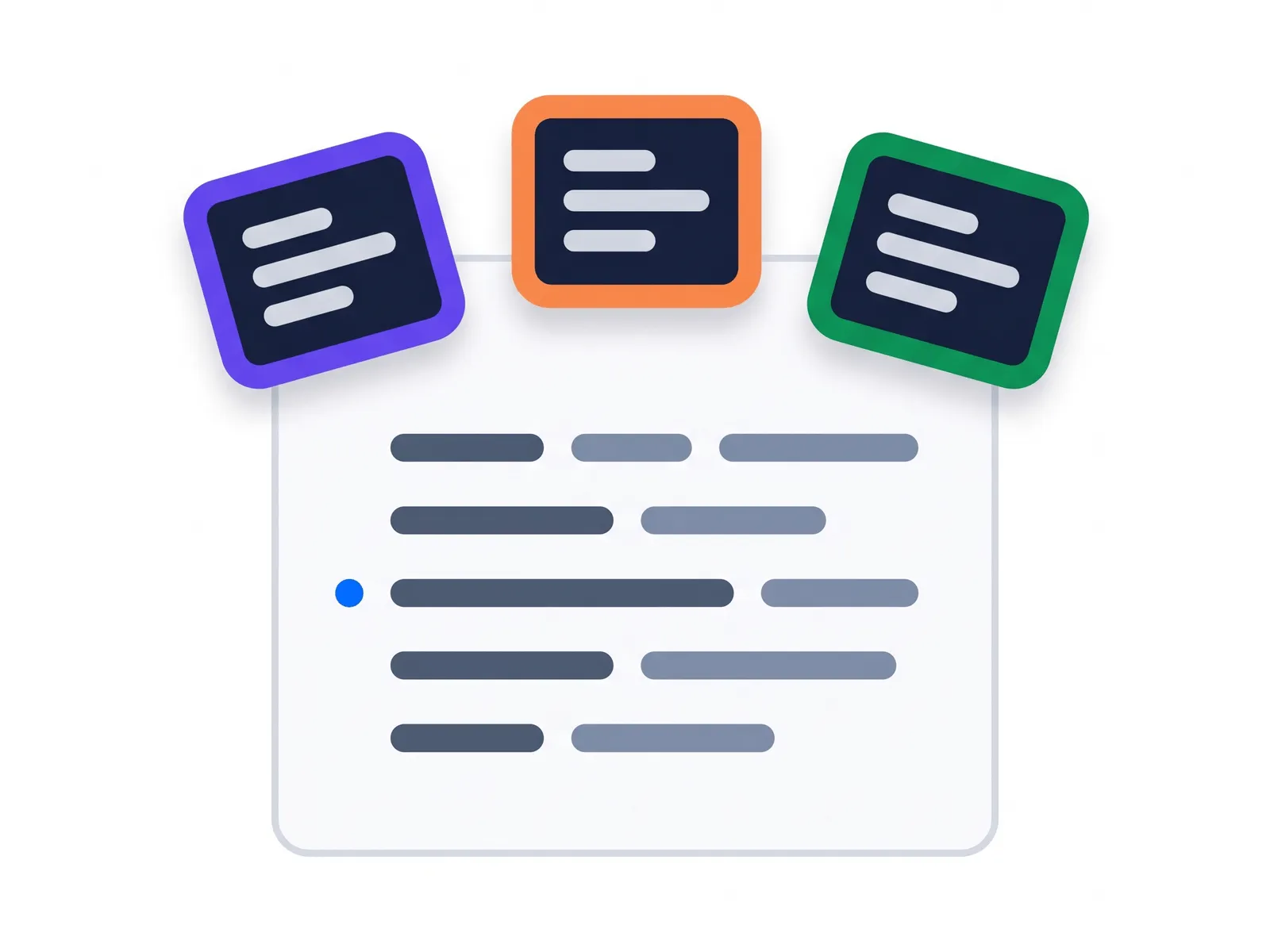
Most meeting notetakers now do something while the call is running, not only after it. Almost all of it works the same way: you open a panel, type a question, read the answer. Guidance that arrives on its own, because the software heard an objection, is a different capability, and it is usually sold as a separately licensed add-on rather than included in the seat you already pay for.
So the practical answer to “can my notetaker help me during the call” is usually yes, on a plan you are not on. From there you have three options, and none of them requires dropping the notetaker.
At CallPrompter we build the second of the three, the layer that runs beside a notetaker rather than replacing it. Adoption is thin even where it is furthest along: a contact center survey published in January 2026 put agent-assist or copilot use at 21 percent of US contact centers, with more than seven in ten planning to adopt within two years. What follows is what your notetaker already does live, the three routes to more, the four questions that decide between them, and what happens on a call with both tools running.
What your meeting notetaker does during the call, and what it does after
Across the major meeting platforms the split is consistent. Live transcription, automatic notes and a catch-up question box come with a paid seat. Guidance about what to say next is a separate product.
| Capability | When it happens | Usually included in a paid seat |
|---|---|---|
| Live transcript and automatic notes | During the call | Yes |
| A question box you type into mid-call | During the call | Yes, on most paid tiers |
| A catch-up summary when you join late | During the call | Yes |
| Objection responses and talking points that surface on their own | During the call | No, separately licensed add-on |
| Summary, action items and the CRM note | After the call | Yes |
| Coaching and scorecards built from the recording | After the call | Varies |
The phrase doing the work in that table is “on their own”. It is also the phrase used most loosely.
“Automatic” means three different things
Vendors use one word for three mechanisms. Only one of them is help in the sense a seller means.
- Time-triggered. Something fires because of the clock. Join more than five minutes late and the assistant offers to catch you up. A midway reminder appears. A timer fires a scripted line if an opening was missed.
- State-triggered. A capability arms itself once the feature is on and two people have joined. Note-taking starts by itself. The question box is ready. The content still waits for you to ask.
- Content-triggered. Something surfaces because of what was said. An objection was raised. A competitor came up. An absent participant’s name came up repeatedly.
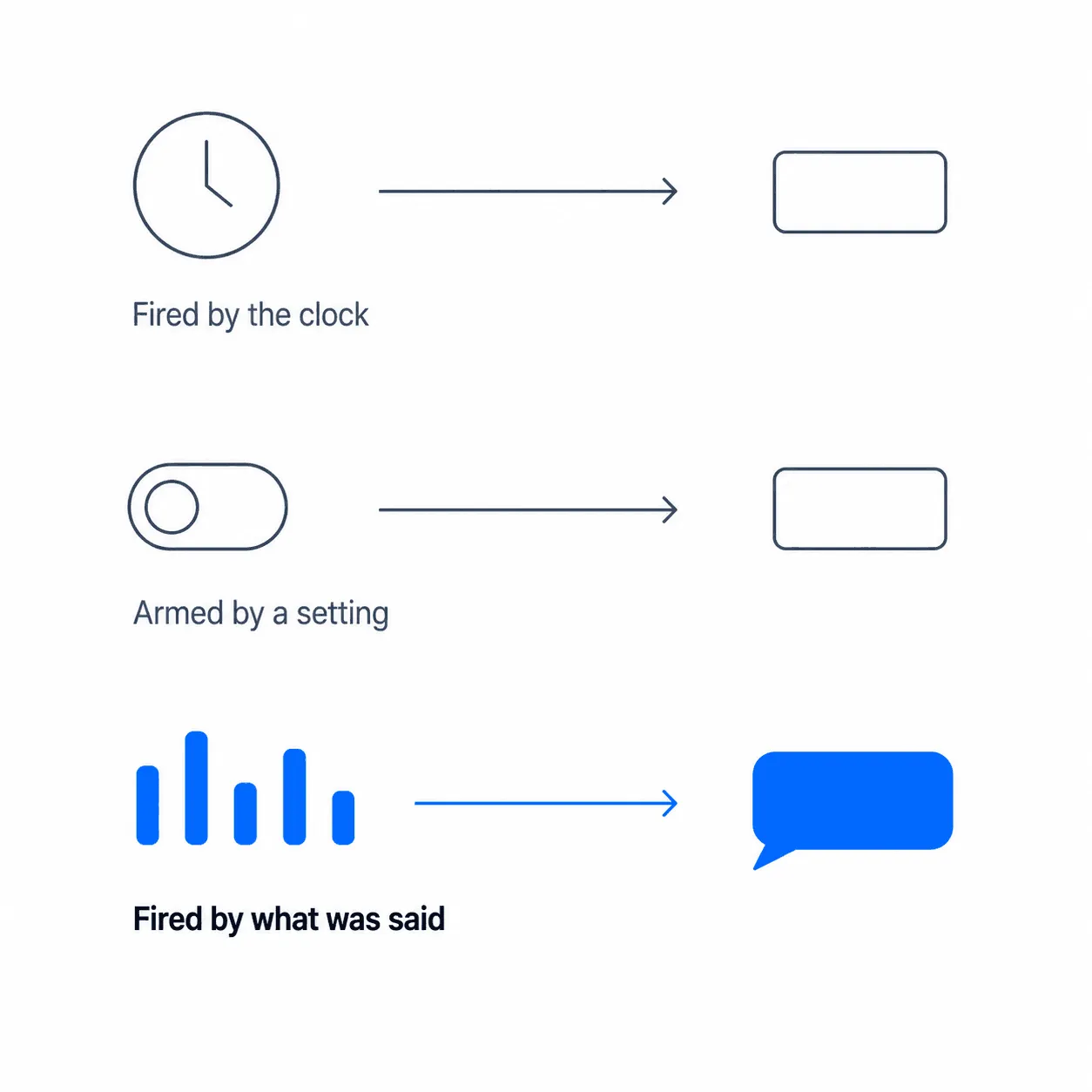
Content-triggered assistance is the only one that answers the question you are actually asking. Work out which of the three you are looking at before you evaluate anything else about a live feature.
How to check what your notetaker already does live
Six checks, in the order that saves you the most time.
- Join a test call and open the in-meeting assistant. If you have to type a question to get anything back, that is pull. Useful, but you have to stop listening to use it.
- Note whether anything appeared without you asking, and why. Match it against the three triggers above. A clock-driven reminder is not conversation-aware.
- Open your plan page and look for a sales or revenue add-on. Content-triggered guidance almost always lives there rather than in the base seat.
- Check the metering. Entry tiers of these add-ons can be capped at roughly an hour per user per month, with no pooling across the team. That is one or two real calls.
- Check whether it works on meetings you do not host. At least one major platform’s meeting assistant does not work in meetings hosted outside your own organization, which describes most customer calls.
- Check whose license decides. On at least one platform the meeting organizer’s edition determines whether the live feature is available at all, so a customer-hosted call can switch it off for you without anyone mentioning it.
Run those six and you will know whether your existing tool can do the job, on which plan, and on which calls.
Three ways to get help while the call is running
| Route | What it takes to set up | What it costs in attention | What it adds to your stack |
|---|---|---|---|
| Turn on the live tier of the notetaker you already have | A plan change, plus an admin if you are not one | One more panel inside the meeting window | Nothing new. Same vendor, same data path, same consent line |
| Add a live-guidance layer beside the notetaker | An install, a script, and one practice call | A second surface, which only pays for itself if it shows you less than the first one does | A second tool, a second data path, a second line in the consent conversation |
| Keep doing it from memory | Nothing | All of it. The recall happens while you are talking | Nothing |
Route three is a real answer. If you sell one product to one buyer persona and you have made the same call four hundred times, the prompts you need are already in your head, and a second screen will cost you more than it returns.
Routes one and two are where the decision actually lives. Four questions separate them.
Four questions that decide which route fits
Does the help arrive on its own, or do you have to ask for it?
Push and pull is the industry’s own vocabulary for this, not language invented for the comparison. Mid-call the difference is simple: with pull you have to stop listening to get help, and with push you do not.
Push is not automatically the better answer, and the only public field evidence points the other way. A senior customer service director at a US airline described deploying exactly this pattern in April 2026: topics were detected, pre-defined information was presented, and manual audits showed agents used it about 1 percent of the time. His summary was that it was “more annoying than helpful”, and his team is shifting to a chatbot so that agents decide when they need help.
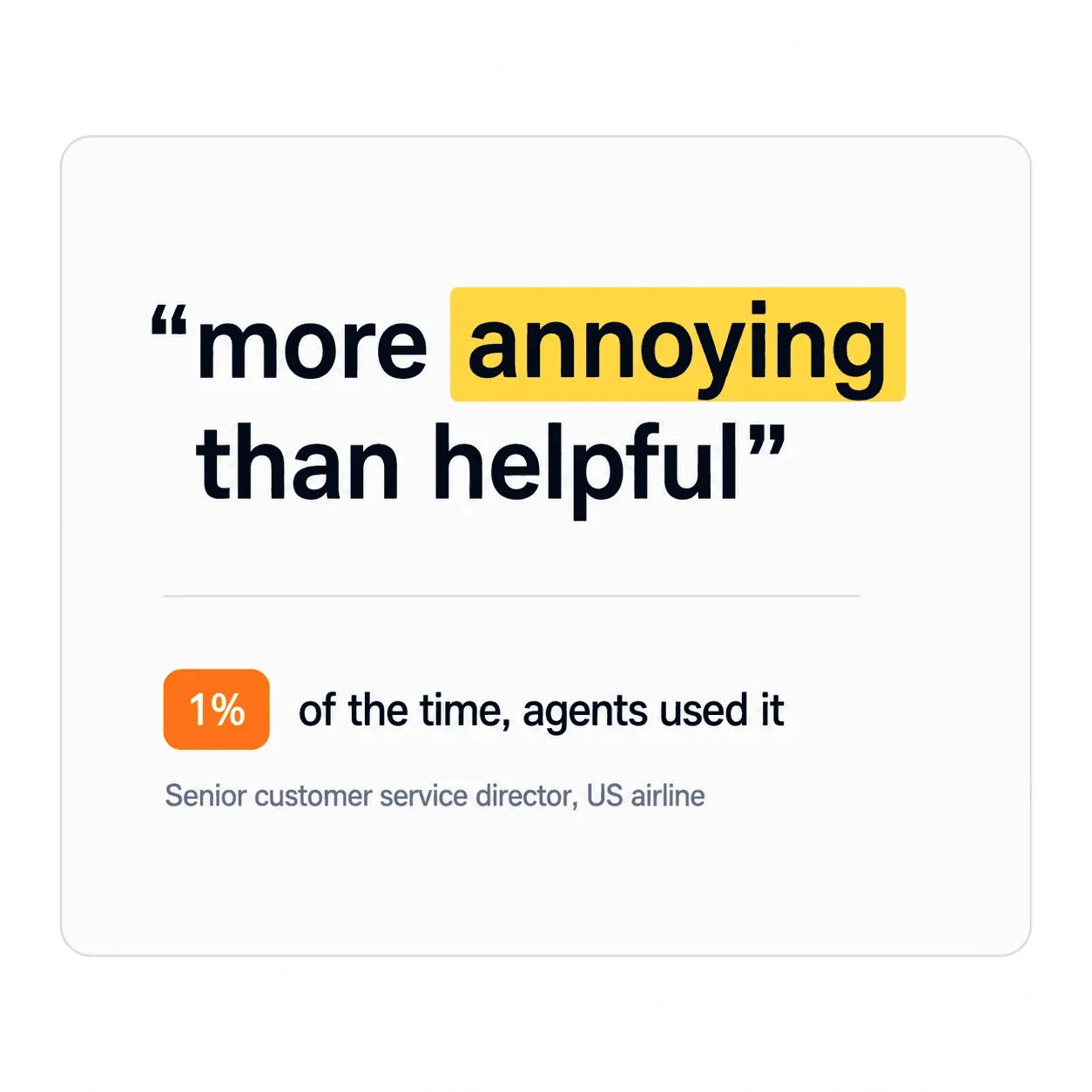
What gets pushed, how much of it, and at which moment is the entire design problem. A tool that pushes badly is worse than one that waits to be asked.
At CallPrompter a prompt surfaces because the software detected an objection or reached a branch in your script, with no query from you. That is the content-triggered category, and we hold ourselves to the standard the airline example sets. If a prompt is not worth interrupting you for, it should not appear.
Where does the help render, and who can see it?
This is the question people get wrong most often, and the answer has nothing to do with any invisibility setting.
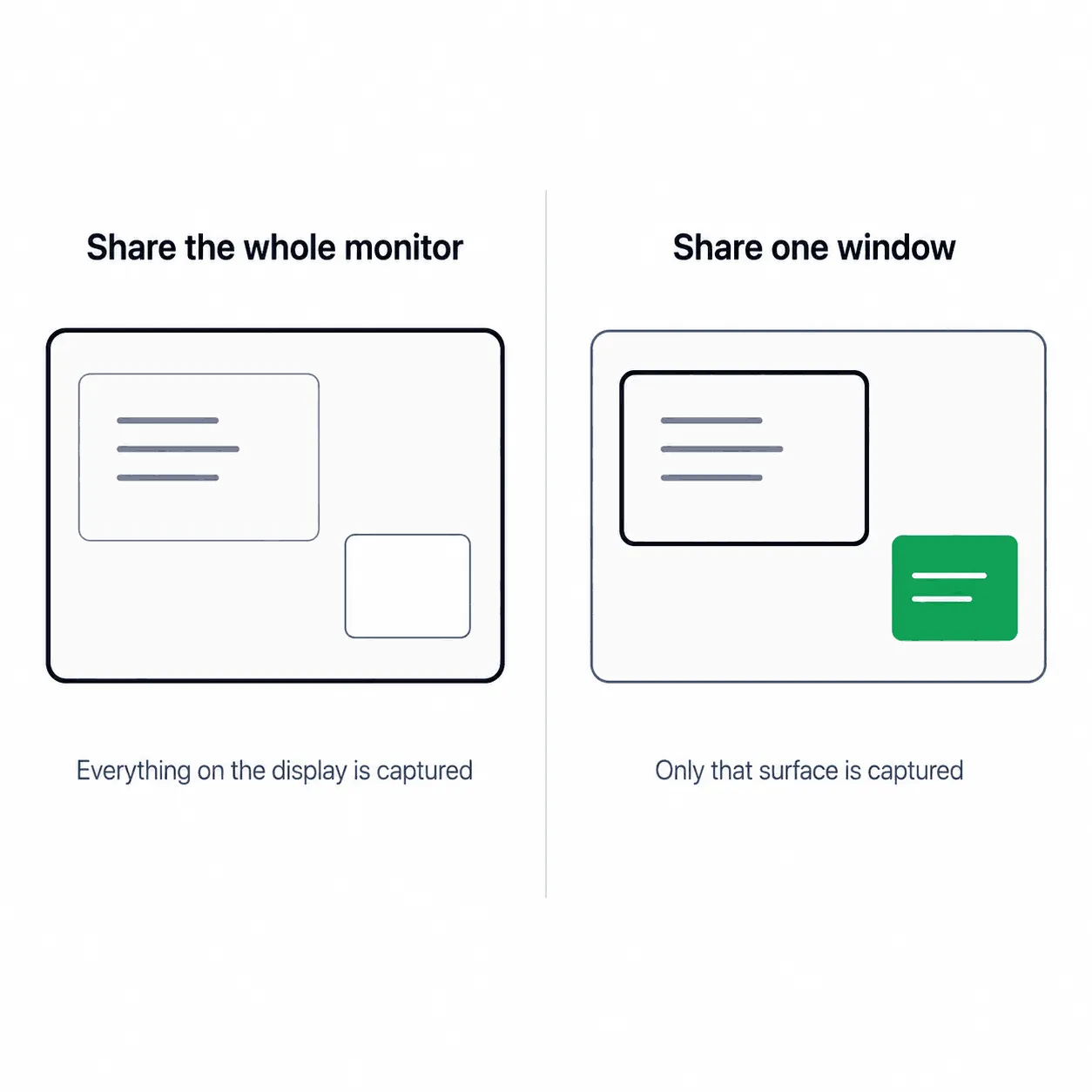
Screen sharing works on surfaces. The W3C Screen Capture specification defines three: a monitor, which is a physical display; a window, which is a single contiguous surface used by one application; and a browser surface, which is one rendered tab. Share a window or a tab and the capture contains that surface. Anything drawn by a different application was never part of it. Share your whole monitor and everything composited onto that display is in scope.
Two consequences worth acting on:
- Help that renders inside the meeting window or a browser panel travels with the share. If the assistant is a pane on the right of the meeting window and you share that window, your prospect is looking at your prompts.
- Help drawn by a separate desktop application does not travel with a window share or a tab share. It was outside the captured surface from the start.
Be careful with any vendor, including us, that puts this more strongly than that. No operating system offers a public API that reliably hides a window from capture. Apple’s own documentation now describes the old window-level flag for it as “a legacy constant that macOS no longer uses” and tells developers not to use it to hide content from capture. The Windows equivalent does work, and Microsoft still states plainly that it is not a security feature and carries no guarantee.
CallPrompter renders its prompt bubbles at operating-system level, in a window of our own rather than inside the meeting client or a browser tab, and they are designed to stay out of screen shares and recordings. In our own use the presenter sees the prompt window and the prospect does not. The habit that makes that dependable is yours: share the window or the tab, not the whole monitor.
What happens to the audio, and where does the transcript land?
“Where does my call data go” is four questions that vendors routinely answer as one. Ask them separately:
- Is it used to train models?
- How long is it retained?
- Where is it stored?
- Where is it processed?
Storage and processing are separate promises, and a vendor can keep one while breaking your assumption about the other. One major cloud provider documents this in its own residency pages: customer data stays stored inside its European boundary while the model reading it processes in the United States. A second provider is explicit that its EU multi-region endpoint excludes Switzerland along with the United Kingdom, because those sit outside the EU political boundary. European hosting and Swiss hosting are not interchangeable claims.
Here is how CallPrompter answers the four, so you can put the same questions to whatever else runs on your calls:
- Audio: none of it reaches our servers. Speech is transcribed in real time and never stored as an audio file.
- Retention: only the resulting text and analysis are kept.
- Storage: all primary data, including transcripts, scripts and customer records, sits on servers in Switzerland, hosted by Infomaniak.
- Processing: names, company names and other personal identifiers are removed before any transcript is sent to an AI provider.
A second tool means a second set of answers. Ask every vendor, including this one, to state its training and retention policy in writing before the first customer call, rather than after procurement asks.
What does a second tool add to what you have to disclose?
No regulator has addressed the two-tools case directly, so this has to be assembled from ordinary transparency duties rather than quoted from guidance. Three things are clear enough to act on.
In Switzerland, recording is a criminal-law question before it is a policy question. Under Article 179ter of the Swiss Criminal Code, a participant who records a private conversation without the permission of the other participants is liable on complaint to a custodial sentence of up to one year or a monetary penalty. Article 179quinquies carves out calls made “in the course of business that have orders, assignments, reservations and similar transactions as their subject matter”, and recordings made under that carve-out may only be used to provide evidence. A discovery call is not obviously inside that carve-out.
Swiss data protection law tells you roughly what to say. Article 19 of the revised Federal Act on Data Protection requires you to give the data subject the controller’s identity, the purpose of processing and the recipients of the data. Paragraph 4 is the one a second tool triggers: if personal data is disclosed abroad, you also have to say which country.
In the United States you cannot know at dial time which rule applies. The federal baseline is one-party consent, and a minority of states require all parties to agree. Which one governs depends on where the person answering happens to be. The Reporters Committee for Freedom of the Press maintains a state-by-state recording guide that is the most usable free reference, and it says clearly that it is not a substitute for legal advice. Neither is this article.
One more practical point. The meeting platform’s own banner does not cover your second tool. It describes recording and transcription by the platform, its text is short and mostly fixed, and a tool that captures audio locally on your machine produces no platform notification at all. Two tools with two purposes and two sets of recipients is a second thing to say out loud.
What to say at the top of the call when two tools are running
Keep it to one breath. Here is the wording we use:
“Two things running: the recording for our notes, and a real-time assistant that transcribes and suggests points to me during the call. It doesn’t record anything separately and nobody outside this call sees it.”
It names both tools, gives each one a purpose, and states what the second one does not do. The follow-up a prospect would otherwise ask is already answered inside the sentence.
Three things to check before you borrow it:
- It has to be true of your setup. If your second tool does store audio, or if anyone outside the call can see its output, change the sentence, not the tool.
- If either tool sends data abroad, name the country. That is the Article 19 point above, and it is the most commonly skipped part of a disclosure.
- On a Swiss call, recording is the legal question and the assistant is the courtesy. Handle them in that order.
CallPrompter asks for your explicit consent before it captures any audio, shows an indicator whenever transcription is running, and lets you stop it at any time. Prompts staying off a screen share is about keeping your notes out of the customer’s view. It is never a way to keep the transcription itself from someone entitled to know about it.
Running two tools on one call: what actually happens
Does the second tool show up in the participant list?
It depends entirely on architecture, and there are two.
A bot-based tool joins the meeting as a client and occupies a participant slot. The platforms name this pattern themselves and have built newer interfaces specifically so that apps do not appear as participant tiles. They are also tightening the door: one platform now defaults to denying unrecognized bots that ask to join, without the host having to do anything.
A locally capturing tool sits below the meeting client entirely. It reads the system audio mix through operating-system interfaces, Core Audio taps on macOS and loopback capture on Windows. The meeting software is never asked for anything, so it has nothing to announce and no tile to draw.
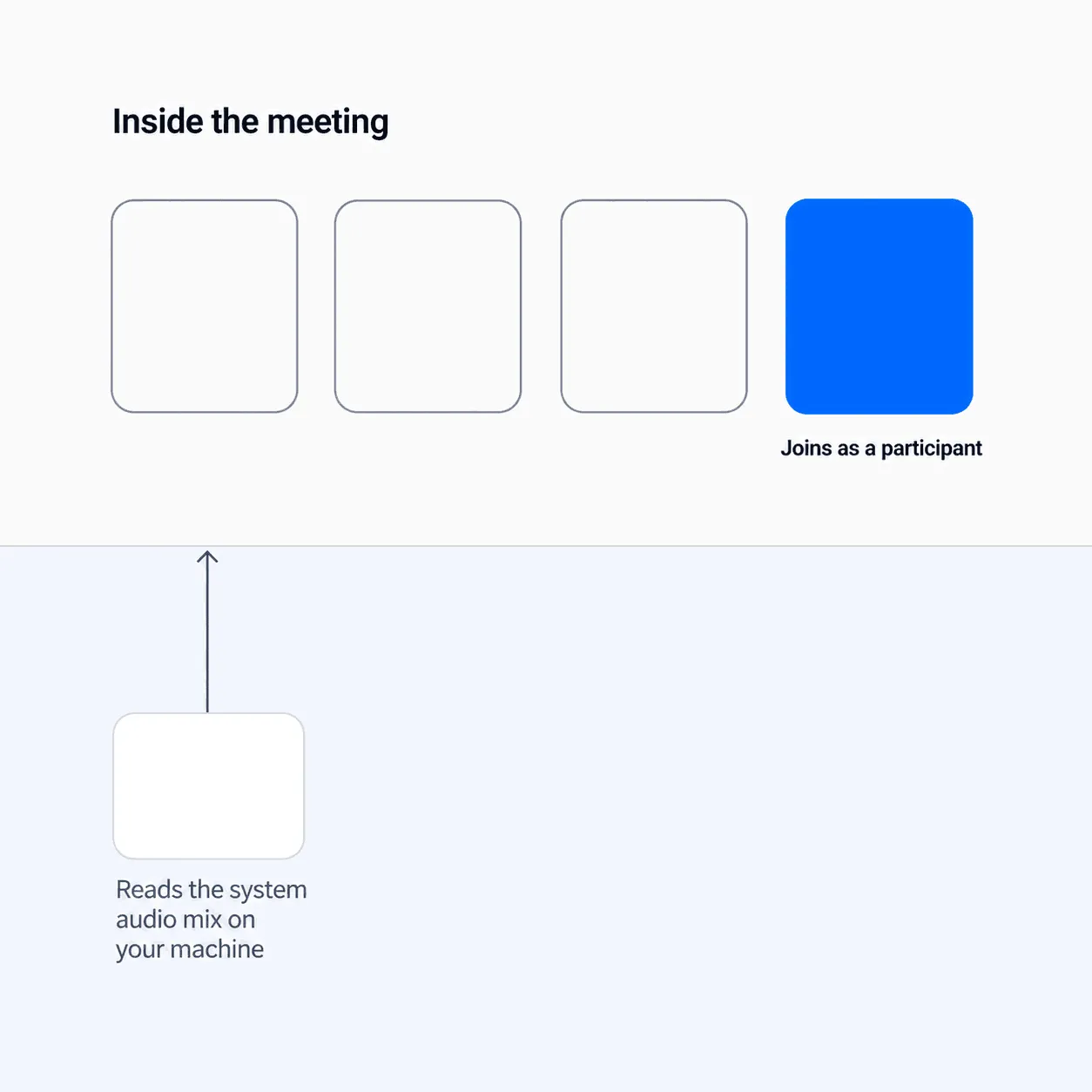
CallPrompter is the second kind. It captures system audio on your own machine, which is why the presenter sees the prompt window and the prospect does not.
That architecture is also why ordinary phone calls work the same way as video calls. Every documented path for capturing a carrier call is a tenant-level platform or carrier feature with its own notification rules, and none of them is a third-party bot joining your call. Local capture does not care what kind of call it is.
Can both tools capture the same audio?
Usually yes, and the documentation is clearer on this than the folklore.
On Windows, several applications can share one audio endpoint by opening shared-mode streams, and loopback capture is shared-mode only, so it stacks by design. macOS documents no cap on the number of concurrent taps.
The failure modes are specific rather than general, which makes them easy to test for:
- Exclusive mode on Windows. An application that takes an endpoint exclusively blocks the others, which surface an “endpoint device already in use” error. Microsoft warns developers against it for exactly this reason.
- Tap mute behavior on macOS. A tap can be configured so that the captured process stops sending audio to your speakers. That is a documented way for a second capture tool to break a call for the person running it, with no involvement from the meeting platform at all.
There is no documented case of two AI call tools colliding on one call. There are documented cases of two people recording the same meeting and one recording quietly failing to save, with no warning to either of them. Test the combination on an internal call before you take it to a customer. Running CallPrompter alongside a recording notetaker has given us good coverage on both sides.
Where does each transcript end up?
Two tools, two destinations, and you should be able to say both out loud. The notetaker’s transcript goes wherever the notetaker puts it, which is the answer to check on your own plan. CallPrompter’s transcripts go to servers in Switzerland.
The division that keeps the decision simple: the notetaker is the system of record, and CallPrompter is the system of assistance. One produces the CRM note, the summary and the recording after the call. The other produces better answers during it.
How much can you actually read while you are talking?
Attention is the binding constraint on in-call help, and the research is not flattering to the idea of a busy second screen.
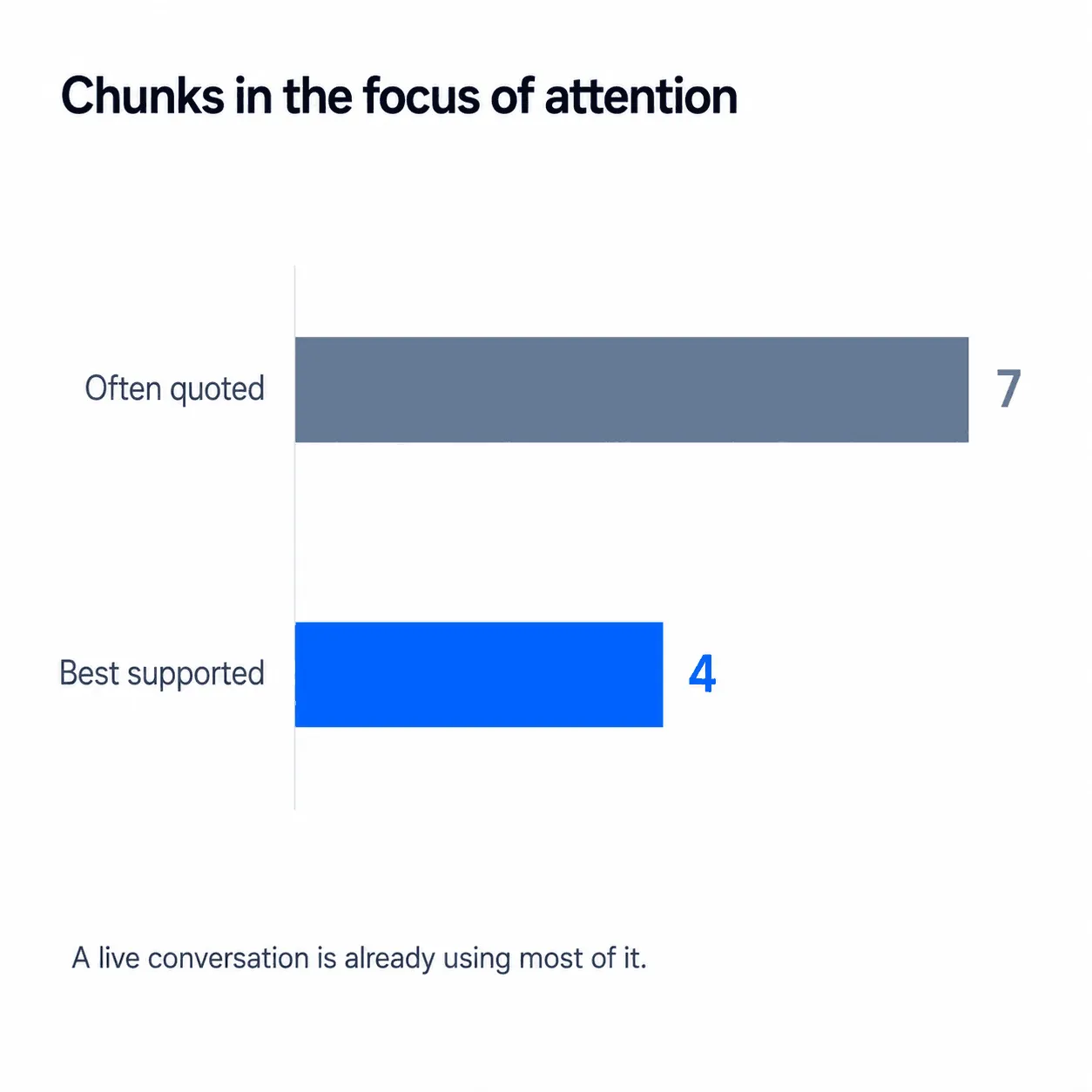
The best-supported estimate of what a person can hold in the focus of attention is about four chunks, not the familiar seven, and that figure comes from conditions where nothing else is competing. On a live call you have fewer than four free. Reading and speaking also draw on the same verbal processing code, which is why models of mental workload predict real interference between the two rather than comfortable parallel operation.
For calibration, look at a domain where a regulator reviewed the evidence and drew a line. Reviewing driver distraction research, the US National Highway Traffic Safety Administration concluded that some activities interfere so inherently with the primary task that devices should be designed so they cannot be performed at all. Its final guidelines name “displaying automatically scrolling text” and displaying text for reading in that category. An earlier draft proposed a character limit instead, and it did not survive. Driving is not a sales call, and the comparison only goes so far. The direction still matters: shortening the text was not judged to be the fix.
A live transcript panel is, functionally, automatically scrolling text. So judge live help on how little it shows you:
- Short prompts, not paragraphs.
- Few of them, with long gaps.
- State communicated by position or color where possible, because that does not compete with the words you are speaking.
CallPrompter was built by an engineer with twenty-five years in software, and the constraint we design against is how little a seller can absorb mid-call.
Adding the second layer without breaking your current setup
- Change nothing about the notetaker. Same plan, same settings, same place the transcript lands. Adding a layer should be reversible in one uninstall.
- Install the second tool on your own machine and grant it audio permission. Local capture needs an operating-system permission, and it will ask.
- Build the script and the objection library before you go anywhere near a live call. This is what a trial is for. Ours runs seven days at USD 0 with no credit card and includes thirty minutes of practice against an AI buyer that pushes back. Live call coaching unlocks on a paid plan, so the trial is for building the playbook and drilling against it, not for running real calls. If the blank page is what stops you, a generator can draft the first version for you to cut down. Our getting started guide walks through the setup and the first practice call.
- Run one internal call with both tools going. Watch for meeting audio dropping out of your speakers, then check that both transcripts arrived intact.
- Rewrite your opening disclosure before the first customer call. Say it out loud once so it does not come out as a paragraph.
- Share a window or a tab, not the whole monitor. Make this a habit before you need it.
Frequently asked questions
Can two AI tools join the same call at once?
Yes, in most setups. Two locally capturing tools share the audio device by default on Windows, and macOS documents no limit on concurrent captures. Bot-based tools are the ones that hit platform limits, because they occupy participant slots and some platforms now deny unrecognized bots automatically.
Do live prompts appear in the call recording?
It depends on where they render and what you share. A cloud recording contains the shared surface and participant video, not your whole desktop, so prompts drawn outside the shared window are not in it. Prompts rendered inside the meeting window or a browser tab are part of that surface and will be captured if you share it.
Does live in-call help work on ordinary phone calls?
It does if the tool captures system audio on your machine rather than joining the meeting as a bot. There is no documented path for a third-party bot to join a carrier phone call, so bot-based tools generally cover only the meeting platforms they have built for. CallPrompter captures system audio, so a phone call behaves the same as a video call.
Where does the transcript go when two tools are running?
To two places, and each tool applies its own retention, storage location and processing location. CallPrompter stores transcripts on servers in Switzerland and strips personal identifiers before any transcript reaches an AI provider.
Should I drop the notetaker once live prompting is in place?
No. They do different jobs. The notetaker is the system of record and produces the summary, the action items and the CRM note after the call. A live layer produces nothing afterward and exists only to improve what you say during it.
Try it beside the notetaker you already run
Build a script and drill against an AI buyer during the seven-day trial, then run one internal call with both tools going before you take the combination to a customer. That is enough to see what content-triggered prompts look like next to your current setup. If you would rather talk through how it fits your stack first, get in touch.
Related posts
How to Follow a Sales Script Without Sounding Scripted, Robotic, or Like You're Reading It
Conversation Intelligence or Live Coaching: Which One Solves My Problem?